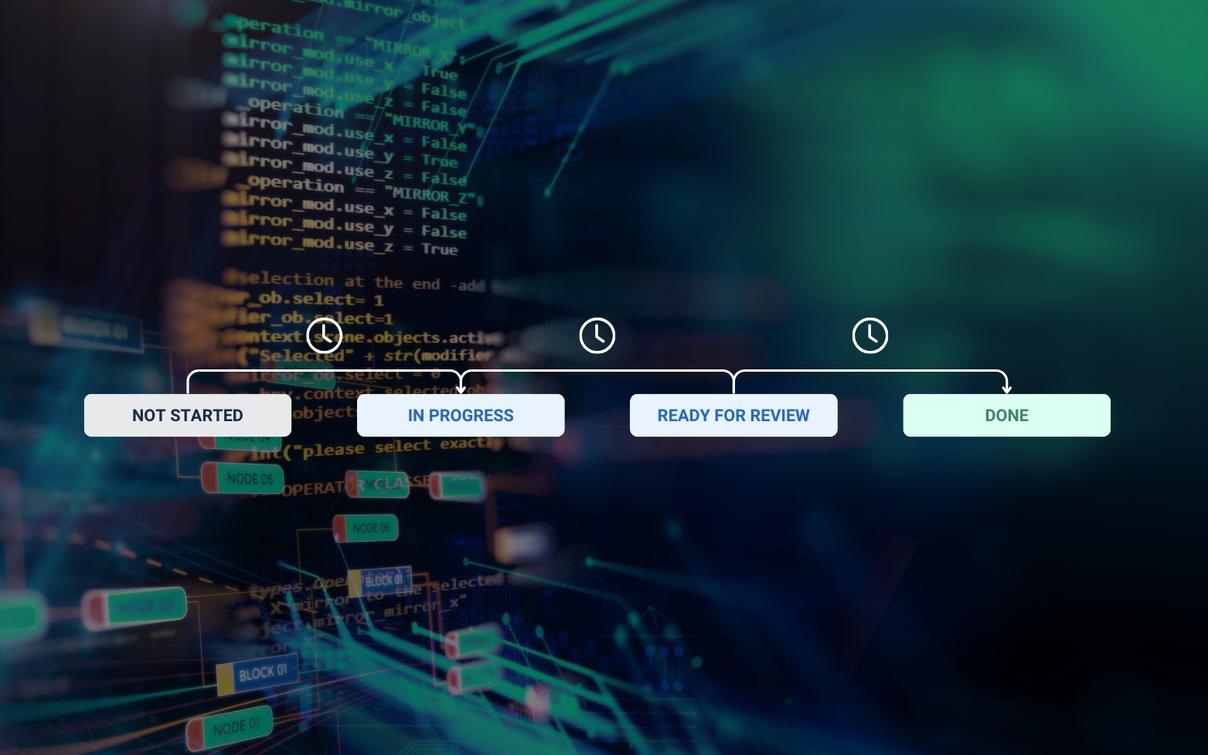
Tracking the time spent on tickets in different statuses is crucial for optimising workflows and identifying bottlenecks in Jira projects. Many teams struggle with this seemingly simple task, as it is not readily available in Jira. In this short guide, we show various methods for tracking the time spent in a status. These include built-in features, third-party solutions, and custom implementations.
Solutions: How to track time spent in status in Jira
While Jira is powerful in issue tracking and project management, it does not offer a simple way to measure the following:
- How long each ticket has spent in each individual status
- How often a ticket has been in a specific status
Teams often need this data to understand how long tickets linger in phases such as “Pull Request” or how often tickets are picked up again.
Integrated Jira features
The Control Chart for Kanban boards can provide some insights:
- Go to “Reports” > “Control Chart”
- Select the status you want to analyse
- Identify the specific ticket number (Issue number)
This method shows the time spent in each status per story, but has limitations for comprehensive reporting.
You can use JQL (Jira Query Language) for rudimentary time tracking:
statusCategoryChangedDate <= -3d AND status = "open"
statusCategoryChangedDate <= -5d AND status = "in progress"
Note: With this method, your workflow must switch between status categories (e.g., “To Do” and “In Progress”).
Third-party solutions
Several apps from the Atlassian Marketplace offer more robust time tracking features for tracking time in status:
- Time in Status by OBSS
- Creates reports on the time spent in each status, for each assignee or user group
- Enables custom business calendars
- Supports Cloud, Server, and Data Center versions
- Time in Status Reports by RVS
- Reports on status time tracking
- Group statuses to define lead time/cycle time
- Identify process bottlenecks and take action
- Status Time Reports by Bloompeak
- Creates status time reports based on working calendars
- Create reports based on time in status or time in assignee, group statuses to get various cycle time and lead time reports
- Jira Workflow Toolboxby Decadis AG
- Provides powerful mathematical and date/time expression functions for automating workflow transitions
- Provides built-in functions such as timeInStatus() for Data Center
- Enables the definition of custom business calendars in Jira for more accurate time tracking
Custom solutions
For teams with specific requirements or budget constraints, custom solutions can be developed:
Automation for Jira:
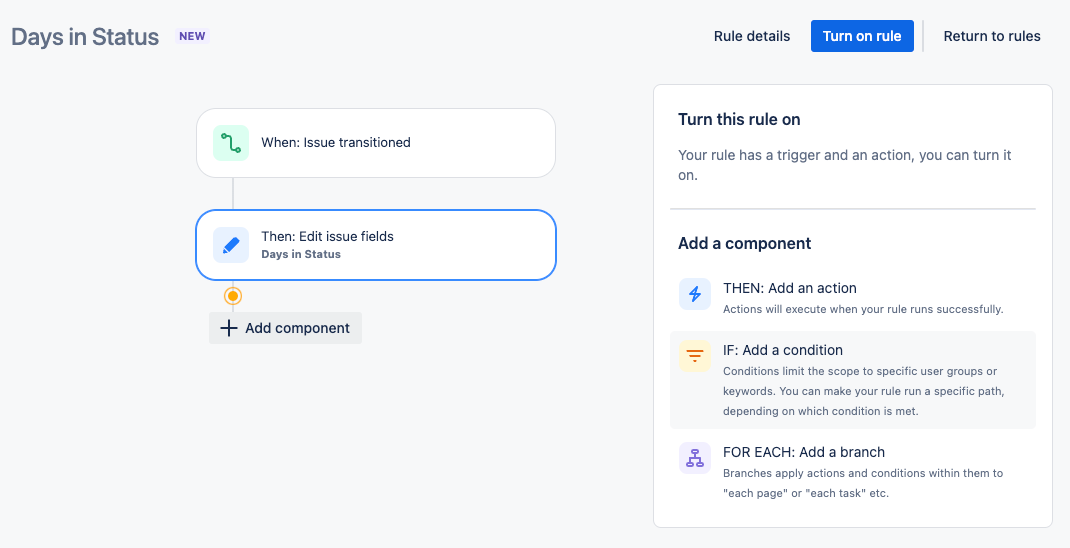
Uses Jira's built-in automation to create a "Days in Status" field:
- Step 1: Create a custom field.
- Create a custom field: Go to Jira Settings > Issues > Custom Fields.
- Click Create Custom Field and choose the type Numeric or Date Difference (depending on your Jira version).
- Name the field "Days in Status". Assign this custom field to the required projects and screens.
- Step 2: Create automation rule:
- Navigate to automation rules: Go to Project Settings > Automation > Create rule.
- Choose a trigger: Trigger: Field changed > Status (This trigger activates the rule as soon as the issue status changes).
- Step 3: Configure rule – Calculate time difference:
- Add action – Collect issue data: Add an action to store the current date: Action: "Edit Issue".
- Select your custom field "Days in Status".
- Calculate the difference: You can use a Jira Smart Value such as {{now.diff(issue.statuscategorychangedate).days}} to calculate the number of days that have passed since the last status change. This returns the time difference in days, which you can store in the custom field.
- Step 4: Test and activate rule:
- Save and test: Run some tests to ensure that the field is updated correctly when an issue status changes.
- Activate: Activate the rule and monitor its performance.
Script-based solutions:
Develop scripts using the Jira API to retrieve and calculate time-in-status data:
import com.atlassian.jira.component.ComponentAccessor import java.sql.Timestamp import java.time.DayOfWeek import java.text.SimpleDateFormat
def myIssue = issue.getKey() Issue issue = ComponentAccessor.getIssueManager().getIssueObject("$myIssue")
// ... (additional code to calculate working days between statuses)
External data analysis:
Export Jira data for analysis in external tools:
- Use the BigQuery Connector for Jira to transfer data to Google BigQuery
- Create custom reports with tools such as Grafana
Use the Jira Workflow Toolbox (JWT) to calculate time in status (Data Center only)
- Populates a custom field with the current timestamp on transitions.
- Example: When you move to “In Progress”, set “InProgressDateTime”.
- Use formulas such as “OpenDuration = InProgressDateTime - Issue Created” to track time in status using functions such as “timeDifference()”
- Use “Jira Workflow Toolbox (JWT) Calculated Number Fields” (Data Center only)
Considerations for implementing time tracking
- Performance impact: Custom fields and JQL functions for time-in-status tracking can put a load on your Jira instance. Consider the performance implications, especially with large datasets.
- Accuracy vs. simplicity: Simple solutions may not account for working hours, holidays, or complex workflow transitions. Determine the level of accuracy your team requires.
- Reporting requirements: Consider how you will use the time-in-status data. Do you need to make it visible in issues, in JQL queries, or in external reports?
- Cost vs. functionality: Weigh the cost of third-party apps against the development time for custom solutions and their respective functionality.
Best practices for tracking time spent in status
- Define clear goals: Understand why you are tracking time in status. Is it to identify bottlenecks, measure SLAs, or improve estimates?
- Start simple: Begin with built-in features or simple custom fields before investing in complex solutions.
- Train your team: Ensure that your team understands how important accurate status updates are for meaningful time tracking.
- Regular review: Regularly review your time-in-status data to identify trends and areas for improvement in your workflow.
- Combine them with other metrics: Use time-in-status data alongside other metrics such as cycle time and lead time to gain a comprehensive overview of your process efficiency.
Conclusion
While Jira does not offer a comprehensive analysis of "time spent in status," there are various solutions to bridge this gap. From leveraging built-in features to implementing third-party apps or custom scripts, you can find a method that suits your team's requirements and budget.
Remember that the goal of tracking "time spent in status in Jira" is to improve your processes and create more efficient value. Choose a solution that provides actionable insights without overloading your team or your Jira instance.
As you implement status tracking, you should continuously assess the impact on your workflow and adjust your approach as needed. With the right tools and procedures, you will gain valuable insights to optimise your Jira projects and boost your team's productivity.