
Confluence is one of those tools that can do pretty much anything. You can provide documentation for your users and projects, publish information and news, and promote cross-departmental collaboration among your teams. However, by default, Confluence can be somewhat cluttered and not necessarily aesthetically pleasing – a proper developer tool, after all. But with a few plugins and a bit of creativity, the whole thing looks quite different. Ultimately, it is up to you whether you prefer generic layouts or stylish Confluence pages.
To be able to create great Confluence pages, you need a kind of recipe book, the necessary ingredients, and a little bit of creativity, just like in cooking.
The basics in Confluence – Spaces and pages
From the very first login, Confluence comes with some brilliant features that allow you to create a clear page structure. It is best to start by creating a few Spaces to give your Confluence an initial basic structure. The simplest basic structure you can create is, for example, one Space for each team (e.g., Marketing) or project (e.g., Iron Man Suite Mk. 5).
Common Confluence Spaces
- Teams & Departments: e.g., Marketing, Human Resources, Sales, IT, etc.
- Projects: e.g., Iron Man Suite Mk 5, Captain America Shield Mk 2, etc.
- Personal Space: Mario’s Dope Marketing Space, Philipp’s crazy Dev. Space
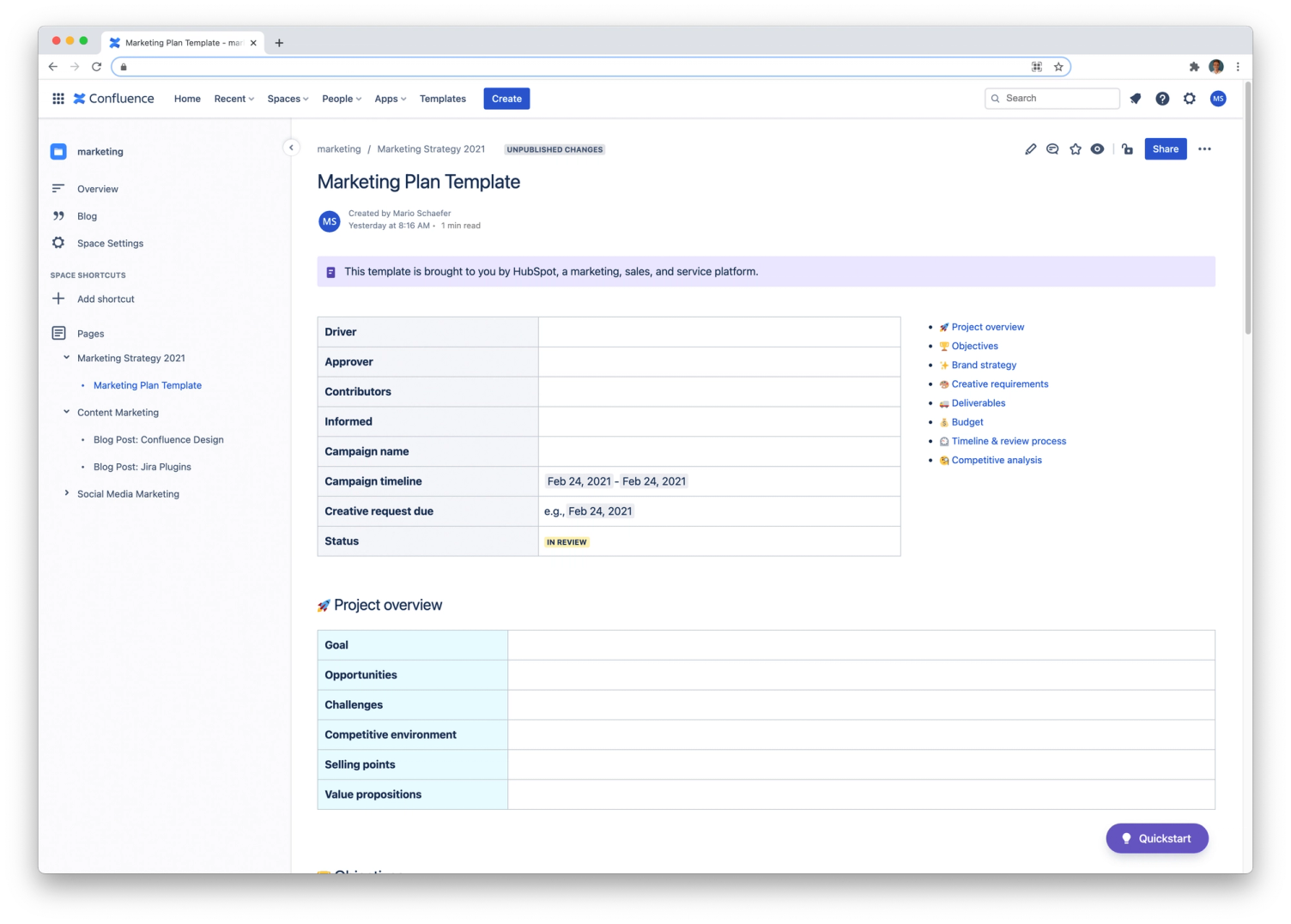
Once you have created all the relevant Spaces for your company, it is advisable to create additional parent pages in each Space. This ensures that you do not end up with a pile of unmanageable pages and content that you can no longer navigate. For example, you can further structure the Marketing Space by adding pages for Content Marketing, Social Media, or Homepage, and then adding individual content to the respective topics.
Templates for your Confluence pages
You have surely worked with templates for various tools here and there, which have made your life and work considerably easier. It is the same with Confluence. On Atlassian you can find some free and pre-configured templates that you can add directly to your Confluence instance, allowing you to create stylish Confluence pages.
Templates for Confluence Cloud users
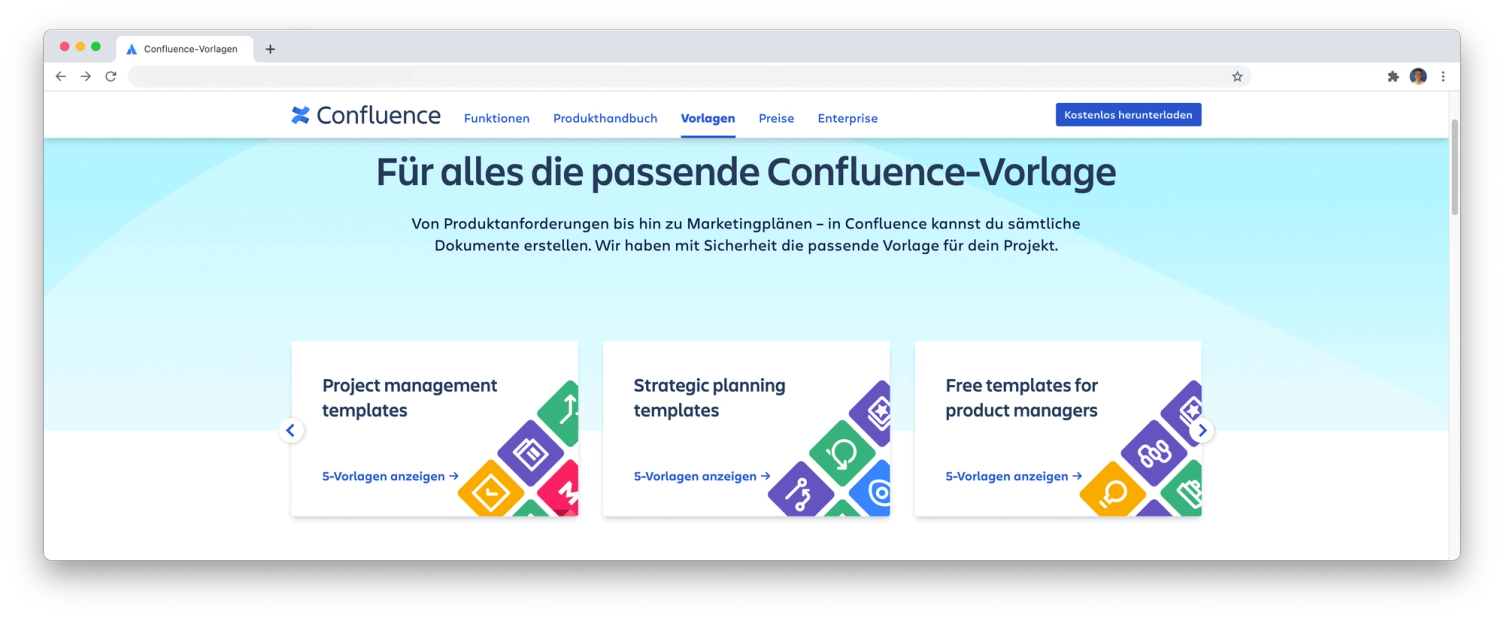
If you are already using Confluence Cloud, this is a piece of cake. Simply click on “Use template” and add it automatically to a page. Afterwards, you can edit your pages as usual and use additional plugins and macros.
Templates for Confluence Data Center and Server users
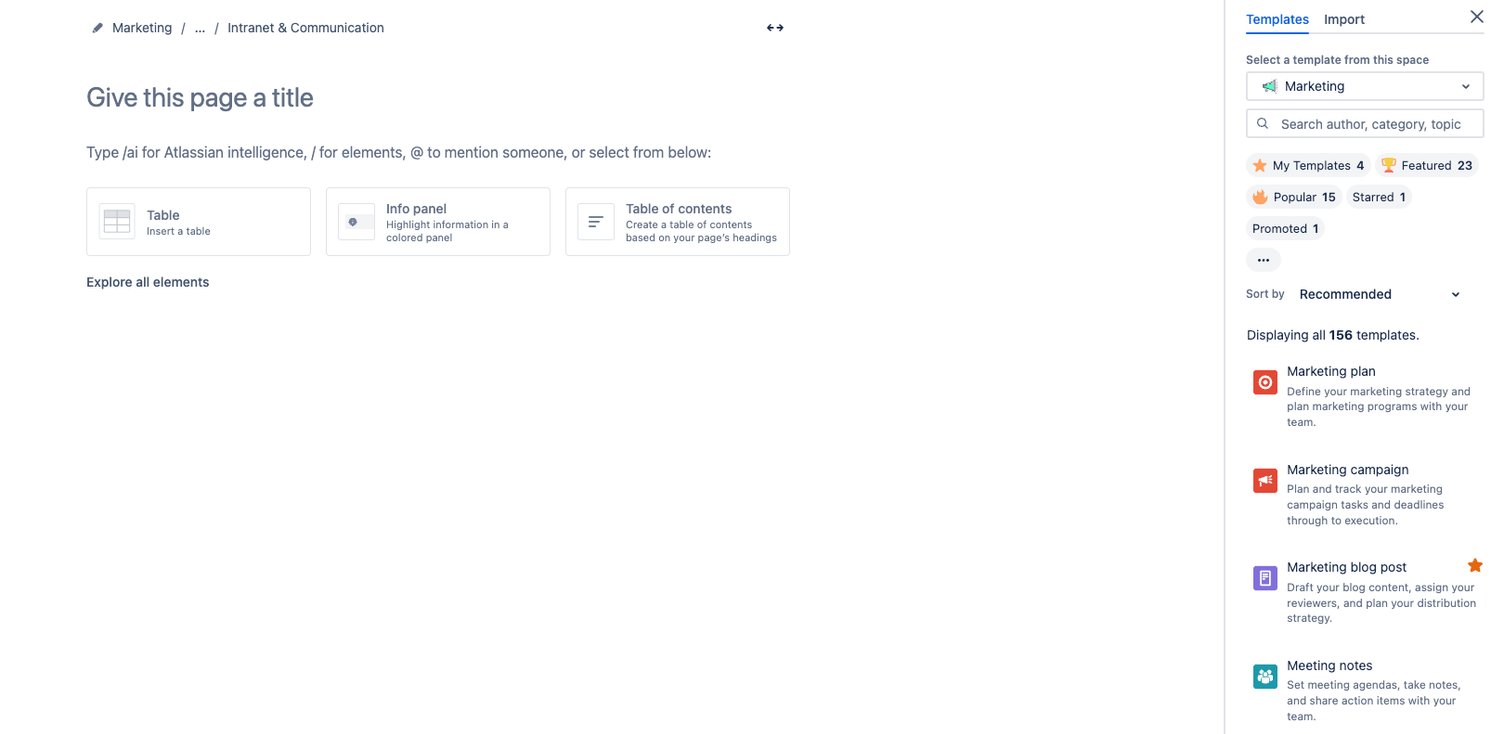
As a Server and Data Center user, the whole thing is unfortunately not so simple. To be able to use templates, you can either create new pages directly from a template or use plugins from the Atlassian Market Place. Here you will find a template for virtually any conceivable use case.
In addition, you can find all templates directly in Confluence (Cloud). When you create a new page, a bar is displayed on the right edge of the screen, from which you can choose from a variety of templates for your project.
Create your own templates
If there is no template that meets your expectations, you can easily create your own or adapt an existing one.
How do I create a Confluence template?
- Go to the Confluence Space settings (or to your Confluence settings (if you are an admin))
- Search for "Look and feel" and click on "Templates"
- Click on the "Create new Template" button or select an existing one that you want to adapt
- Give your template a name
- Add editable content
- Save the template
- You will then find the template in the right-hand sidebar when you create a new Confluence page.
Plugins and macros
To make your Confluence pages more informative or tailor them to your specific use case, you can use plugins and the associated macros. Plugins can be obtained from the Atlassian Market Place.
Plugins
There are several free extensions for Confluence that you can install directly on your instance. In addition, there are also a large number of external plugin providers.
Refined
The Confluence plugin "Refined" is your secret recipe for giving your Confluence pages not just structure, but also a touch of style. With Refined, you transform the standard Confluence interface into a visually appealing and intuitively navigable intranet that facilitates information absorption and strengthens brand awareness.
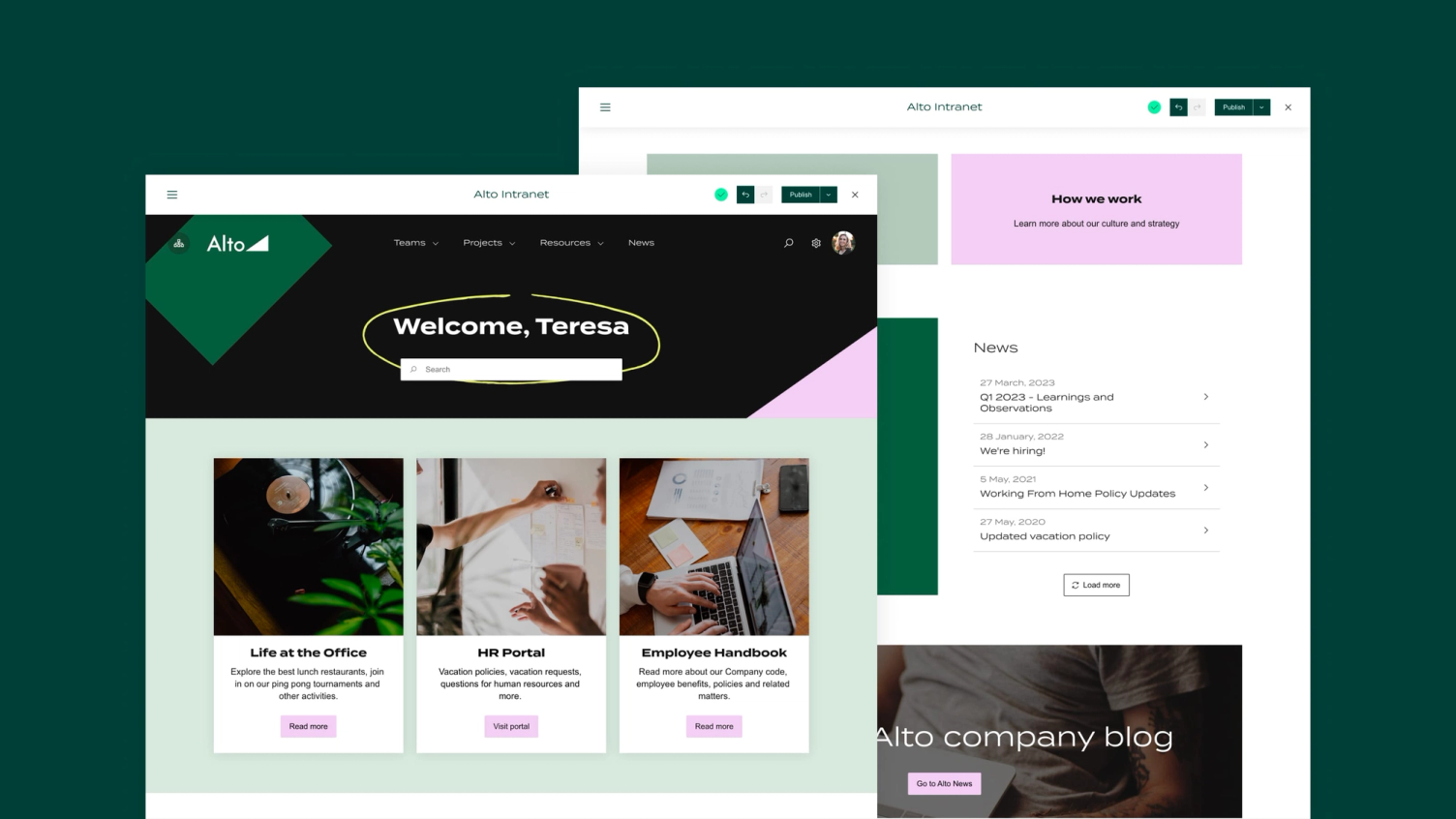
By customising themes and layouts, you can give each page a unique character – whether it is project dashboards, corporate wikis, or team spaces. Refined allows you to create attractive and user-friendly pages without in-depth technical knowledge, promoting collaboration and increasing productivity.
Discover how to turn generic Confluence pages into real eye-catchers with just a few clicks, presenting your content better and elevating the user experience to a new level.
Aura by SeibertMedia
With the "Aura - Content Formatting Macros", you get a powerful tool to individually design and structure your Confluence pages far beyond the standard design. This collection of macros allows you to present content not only in an optically appealing way but also to significantly improve clarity and user guidance.
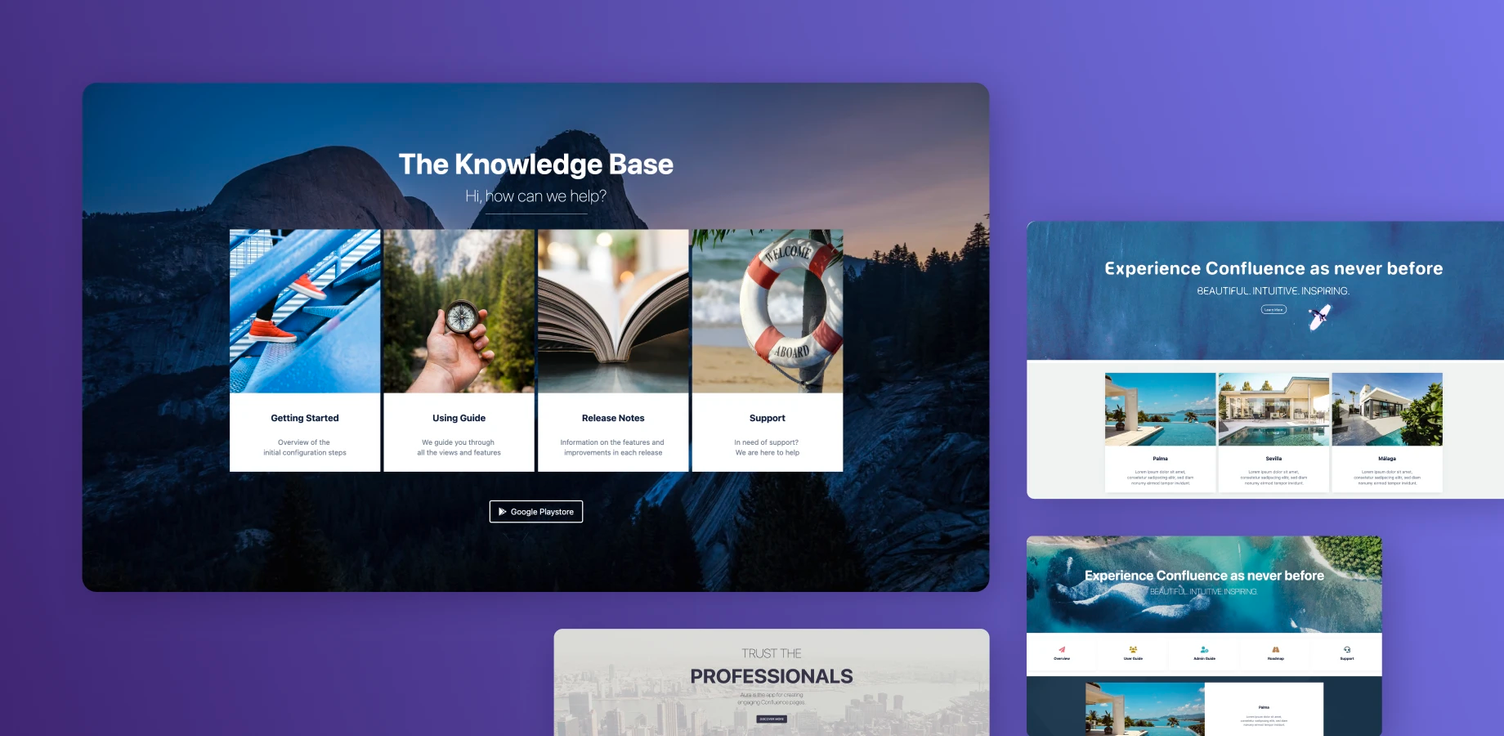
Whether you want to create dynamic tabs for clearly structured navigation, embed Miro boards or Figma designs directly into your pages, or seamlessly integrate complex content with Google Docs or HTML codes – Aura provides the solution. The diverse design options support you in conveying information not only accessibly but also visually impressively.
By simplifying the integration of this versatile content, Aura enables you to create Confluence pages that are not only informative but also inspiring, thereby promoting collaboration and team engagement.
Advanced Image Gallery by XALT
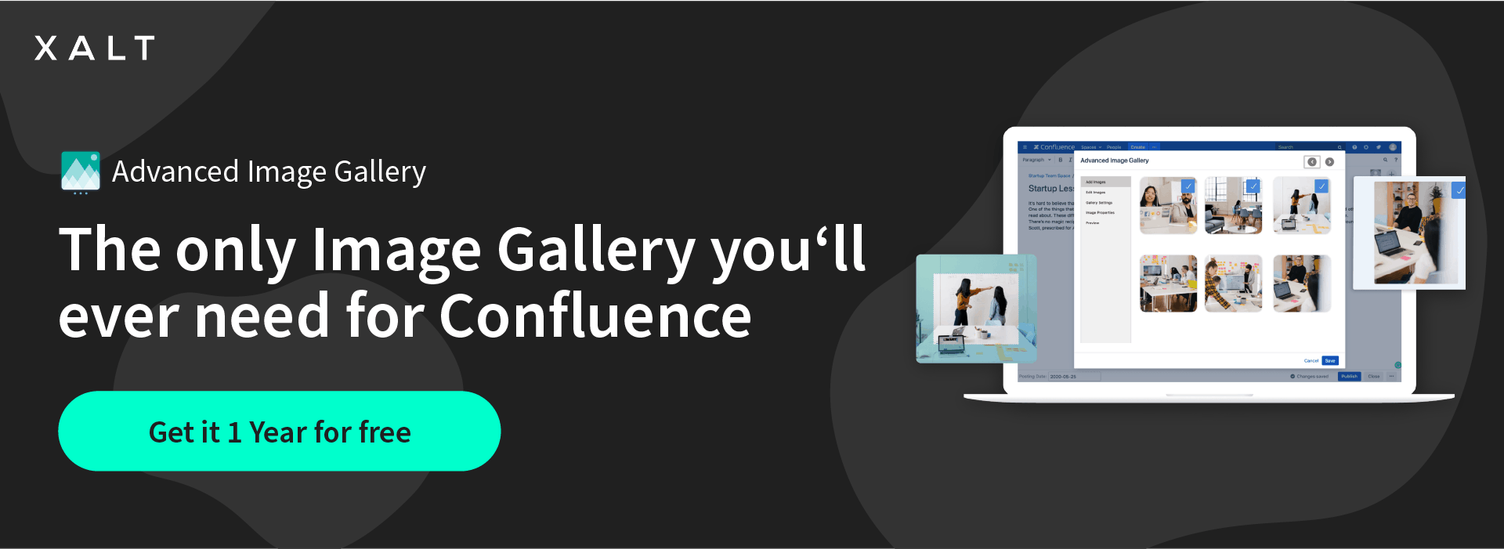
For example, if you want to add an image gallery or a slider to a Confluence page, you can either rely on the built-in feature in Confluence or use the ‘Advanced Image Galery from XALT’. This makes it incredibly easy and intuitive to edit, adjust, and display images directly on the page in various layouts.
Macros
Some macros are already included in the basic functionality of Confluence, while others are provided by plugins. With macros, you can adjust your pages directly and natively to your liking, and it is a core feature of Confluence that you will probably work with almost daily. You use some macros by clicking the “small plus” at the top of the screen and adding the feature at the desired location.

The most important thing: Your creativity
Sometimes your pages are intended for internal use only and do not necessarily need to be creatively styled. However, you have surely also been in situations where you had to present your content visually. The stylish templates and plugins are, of course, a great help when creating stylish Confluence pages. But ultimately, your own creativity and commitment will take you much further in creating great content.
In marketing and design, people often talk about “Fake it, till you make it”. In simple terms, this means finding inspiration on the internet and using these insights in your projects. But beware: Don’t Copy and Paste!
Structure your pages
To maximise the efficiency and usability of your Confluence pages, a well-thought-out page structure is essential. Here are some best practices to help you organise your pages so that they are not only informative but also easy to navigate:
Establish a clear hierarchy
Start with a clear idea of how your content should be structured. Create a hierarchy that is logical and corresponds to the way users search for information. This could mean that you set up Spaces for different teams or projects and organise pages and subpages within these Spaces by topic or function.
Use consistent naming conventions
Consistent naming conventions for your pages and Spaces make it easier to find information. Decide on a clear and descriptive naming that reveals the content of the page or Space at a glance.
Use overview pages
Create overview pages that serve as tables of contents for larger areas within your Confluence workspace. These pages can contain links to important subpages and give users a quick overview of available resources.
Apply labels consistently
Confluence allows the use of labels to group pages thematically. Use this feature to link similar content and simplify searching within your Confluence environment.
Set up navigation aids
Consider incorporating navigation aids such as breadcrumbs, tables of contents, or custom page navigation elements. These tools help users find their way through your content and keep track of their current position within the structure.
Do you need support with integrating Confluence into your business and team? As an Atlassian Platinum Solution Partner, we are happy to advise you on finding the right solution. On our Atlassian Services page, you can learn more about our approach and methodology.
The basics in Confluence, starting with the creation of Spaces and pages, lay the foundation for a clear and efficient use. The use of templates not only facilitates design but also optimises the workflow. The integration of plugins and macros, such as Refined, Aura and Advanced Image Gallery, gives Confluence pages not only structure but also an aesthetic touch.
The user's creativity plays a crucial role in presenting content in an appealing way. A well-thought-out page structure, clear hierarchies, consistent naming conventions and the use of navigation aids are essential to maximise efficiency and usability. Confluence offers a wide range of options to foster collaboration and boost productivity.